Fast checkout that keeps selling when the internet drops.
Scan, tap or search, take payment and print the receipt. Returns, the cash drawer and offline sales are built into the same POS, with no extra screens to learn.
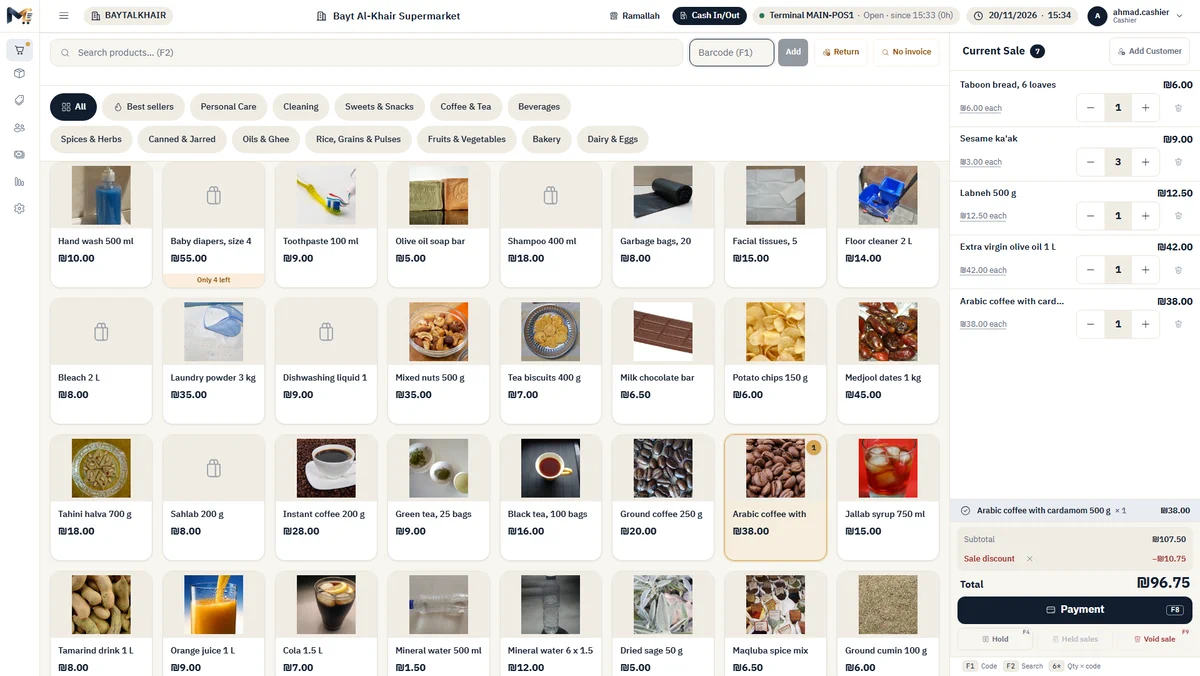
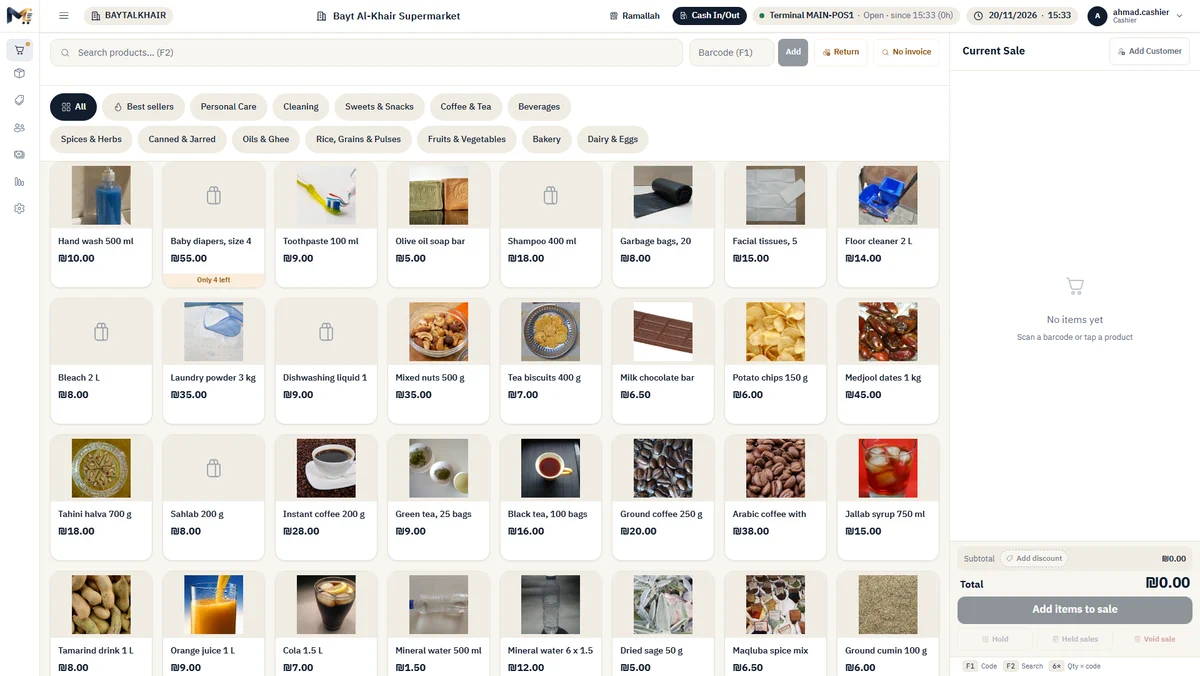
Fast, simple checkout
Products appear with their photos and prices, grouped by category. The cashier scans a barcode, searches by name or taps a tile, and the cart keeps a running total.
- Add products by category, by search or by scanning a barcode.
- A carton’s own barcode adds the carton at its own price.
- Keyboard shortcuts for every step, and on-screen keypads for touch screens.
- Hold a sale and resume it later.
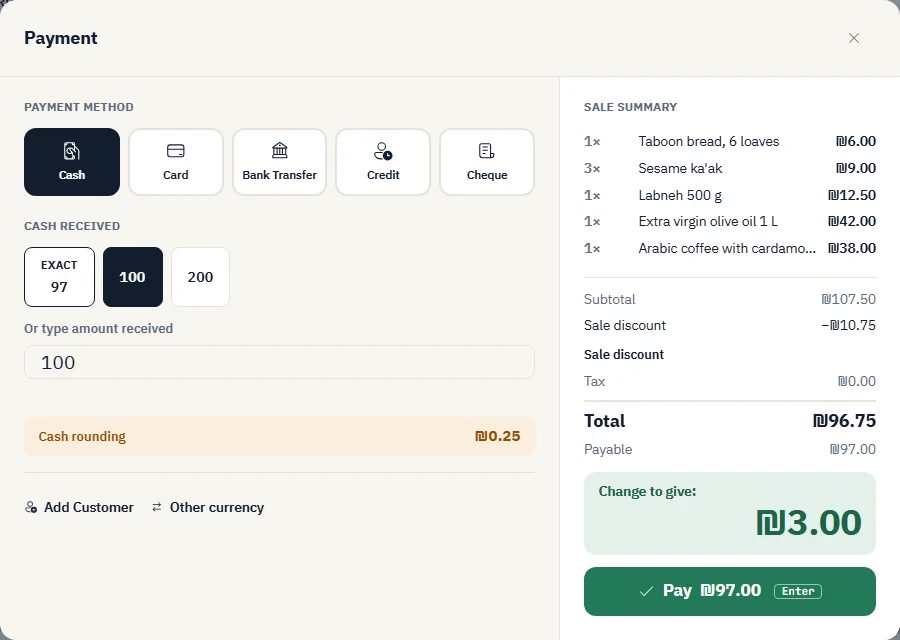
Take payment however your customer pays
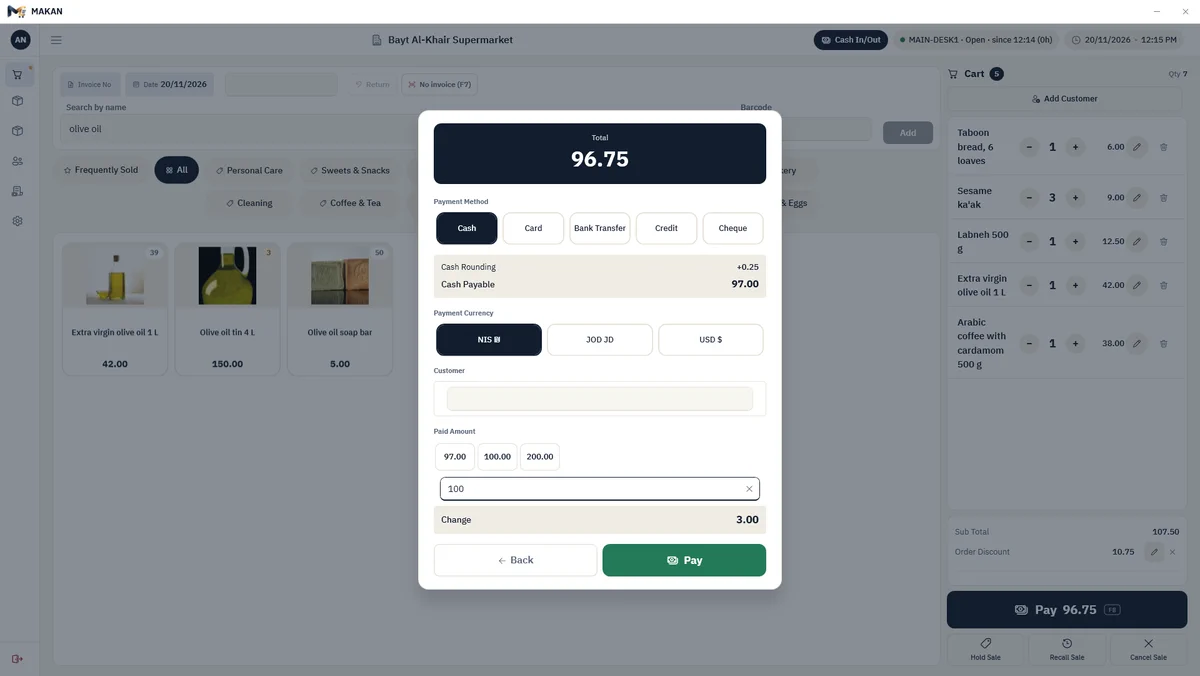
The payment dialog opens in one tap and shows the change due before the money is taken.
- Every common payment method, one tap away.
- Change quantities or apply an invoice discount at checkout.
- Price overrides at the POS stay within the minimum and maximum you set.
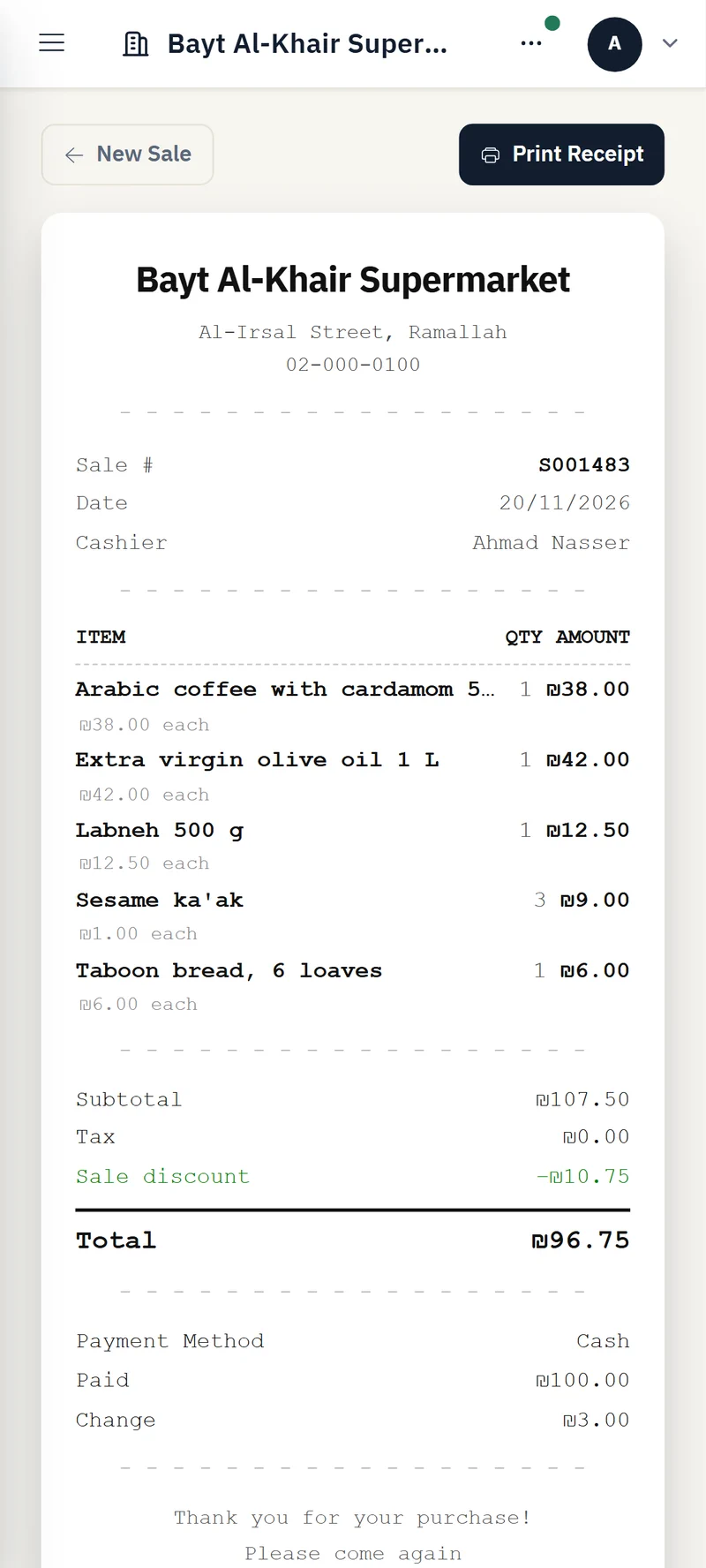
Receipts, printed or on screen
Every sale gets its invoice number from the server and prints on the terminal’s thermal printer, automatically if you choose.
- Thermal receipts for sales and returns.
- Reprint any sale or return from the invoice list.
- Weighed goods: the POS reads scale barcode labels, and the Windows POS reads a digital scale.
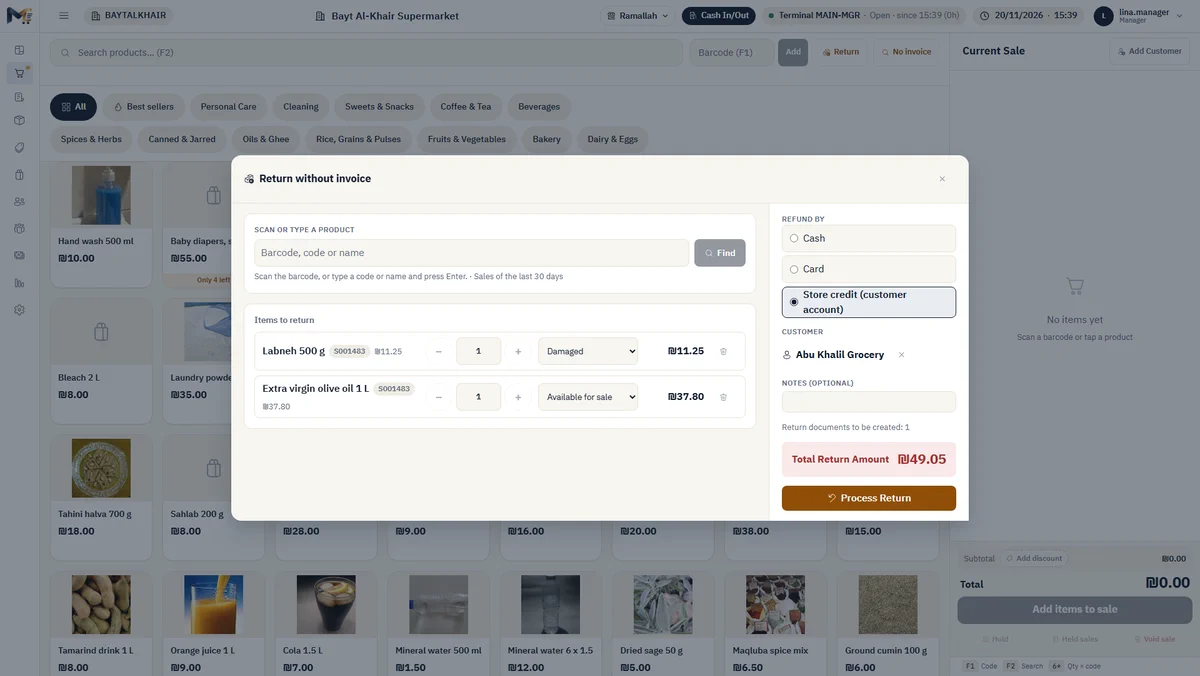
Returns, even without a receipt
The cashier scans the product and the POS lists the earlier sales it was sold in, with the price actually paid. Each item is marked as available, damaged or expired.
- The refund matches what the customer actually paid, discounts included.
- Damaged and expired items never go back on sale.
- Refund the money, or add it as store credit on the customer’s account.
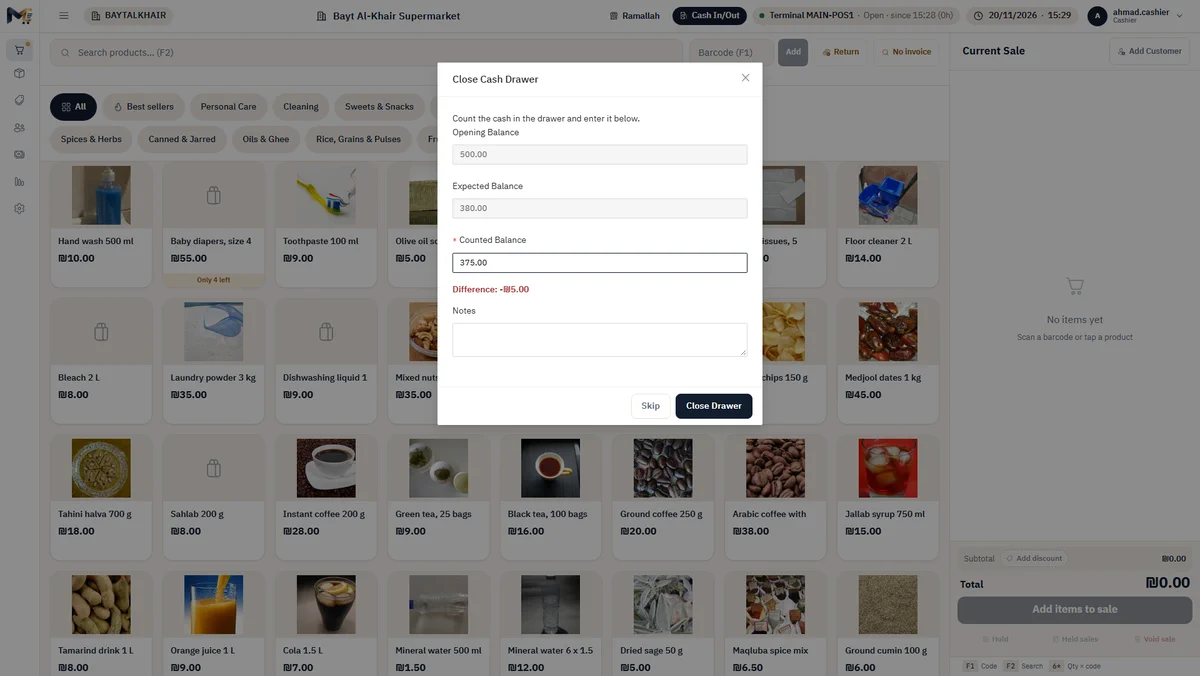
Every coin in the drawer accounted for
The cashier opens the drawer with a float, records cash in and cash out, and counts it at the end of the shift. MAKAN shows any difference straight away.
- Each POS terminal opens and closes its own cash drawer session.
- Cash in and cash out are recorded against the session.
- At closing, the counted cash is compared with what the drawer should hold.
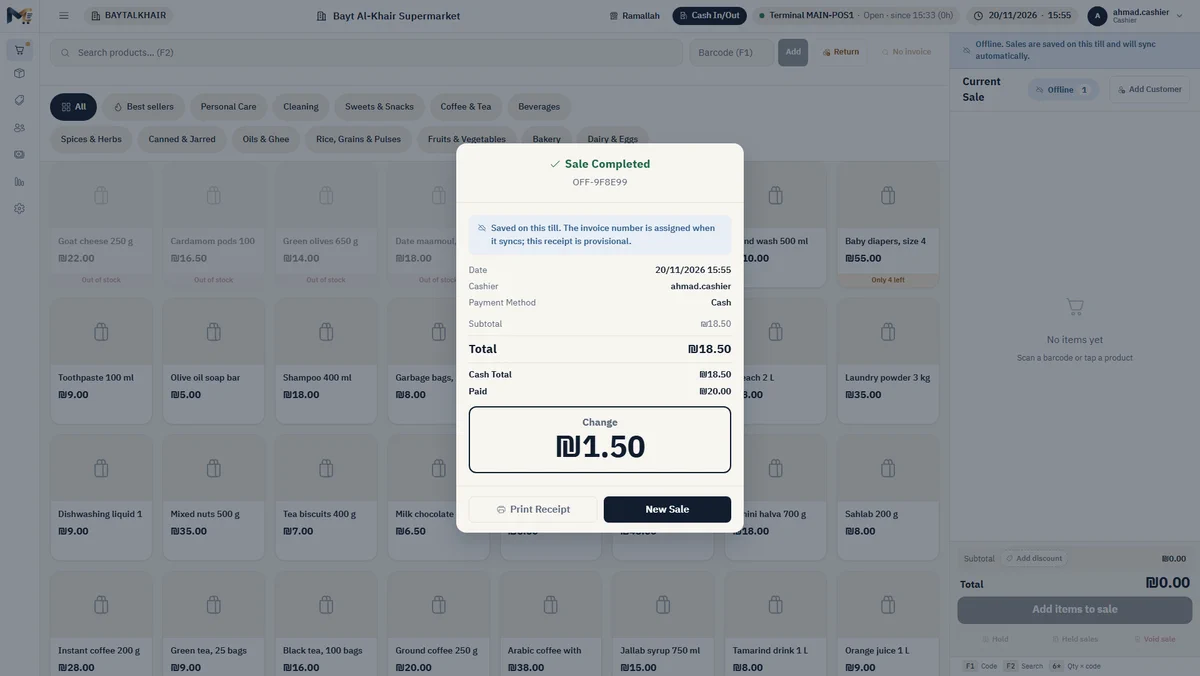
Keep selling, even when the internet goes down
A dropped connection shouldn’t stop your business. When the web POS can’t reach the server, it keeps selling, saves each sale on the device with a provisional receipt number, and syncs it automatically once the connection is back.
- The web POS keeps selling when it can’t reach the server.
- Offline sales sync automatically when the connection returns.
- Each sale is recorded once, never twice.
The Windows POS
For stores that want a desktop app at the counter. It runs on your store’s own database over the local network, so the internet is never part of a sale.
- Several POS terminals share one store database.
- Each terminal registers itself on first launch, with its own code.
- Optional cloud sync lets you follow the store from any browser.
 MAKAN
More of what MAKAN does
- Platform overview How it all fits together
- Inventory management Warehouses, stock counts, transfers
- Purchasing & suppliers Deliveries and supplier accounts
- Customer management Accounts, credit sales, payments
- Reports & analytics A dashboard and 22 reports
- Multi-branch management Branches, terminals, permissions
See MAKAN at work with your own products.
Book a short demo. We walk you through checkout and the back office, then send a quote for your setup, branches and POS terminals.